
Can't Connect to Your Soulmask Server? Troubleshooting Guide

A Soulmask server you rent from gamever is managed entirely through the control panel, so when you or a friend can't connect, you don't need to touch any dedicated-server internals — you just need to check the right tabs in the right order. Soulmask's dedicated server is Steam/PC-only with no crossplay, so everyone joining must be on the PC version. This guide walks through the common reasons a join fails — the server still booting, the wrong address or password, a version mismatch after an update, or a lost connection — and shows exactly where in the panel to confirm each one. The ports are assigned and handled by us, so port-forwarding is never part of the fix.
First: is the server actually up?
Most "can't connect" reports come down to the server not being fully online yet. Open the Overview tab and check two things at the top: the On/Active state and the status of the Start / Stop / Restart buttons. A server that was just created, just updated, or just restarted needs a minute or two to finish loading the world before it accepts players.
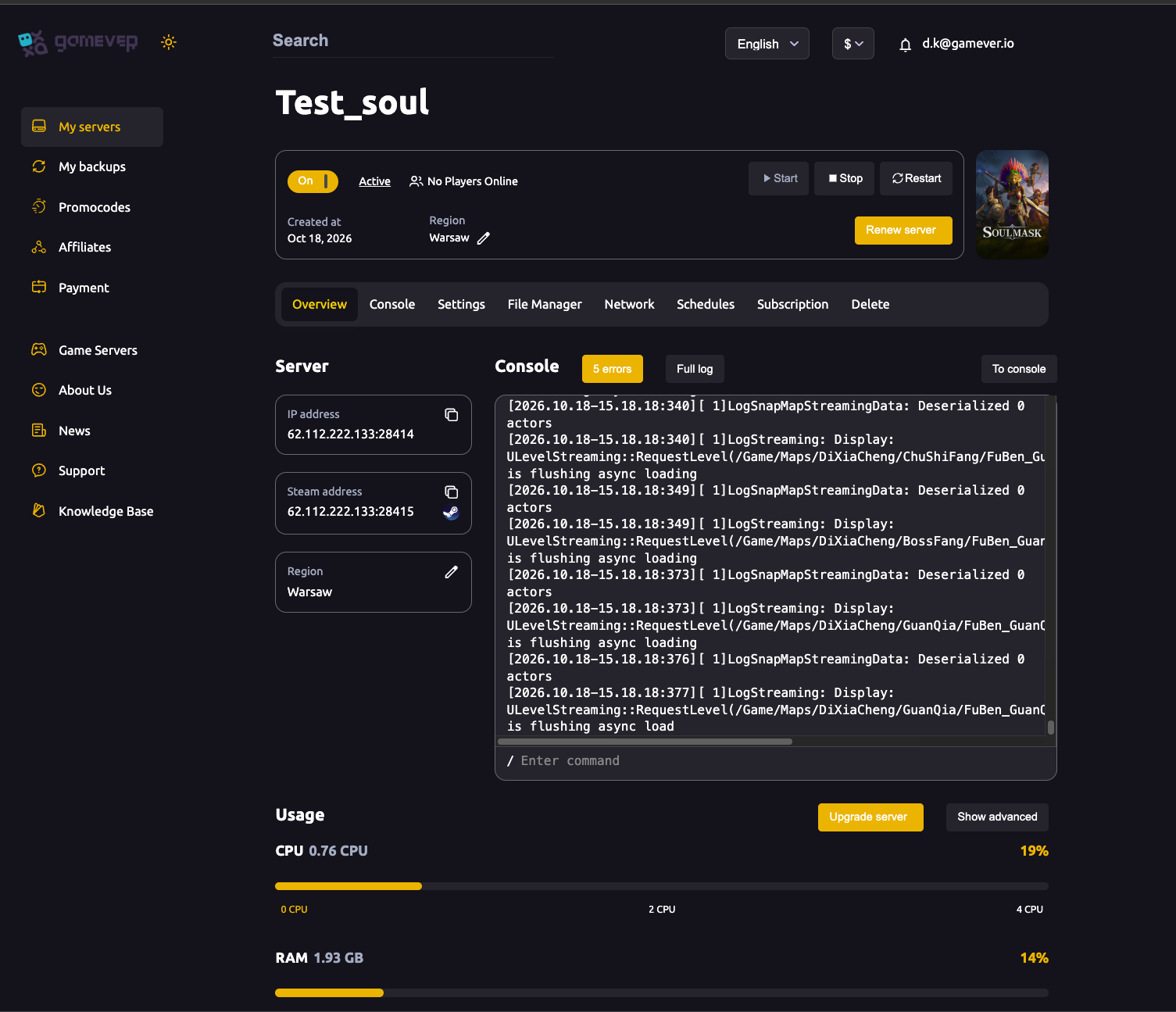
The Overview page also shows a console preview with an error counter and a Full log link, plus the current Players count (for example 0/20). If the server is off, press Start; if it's behaving oddly or is stuck after a change, press Restart and give it a moment. Watch the player slot indicator and the console preview settle before trying to join again.
| Symptom | What to check on Overview |
|---|---|
| Server not in the browser at all | Is the On/Active state actually on? Start it. |
| Just restarted/updated, join fails | Give it 1–2 minutes to finish booting before retrying. |
| Behaving oddly mid-session | Press Restart, watch the console preview settle. |
| Rising error counter | Open Full log / the Console tab to read the actual error. |
Use the correct server address
A wrong or stale address is the second most common cause. Open the Network tab and read your server's values — don't reuse an address from an old session, as panel-assigned values are specific to your server.
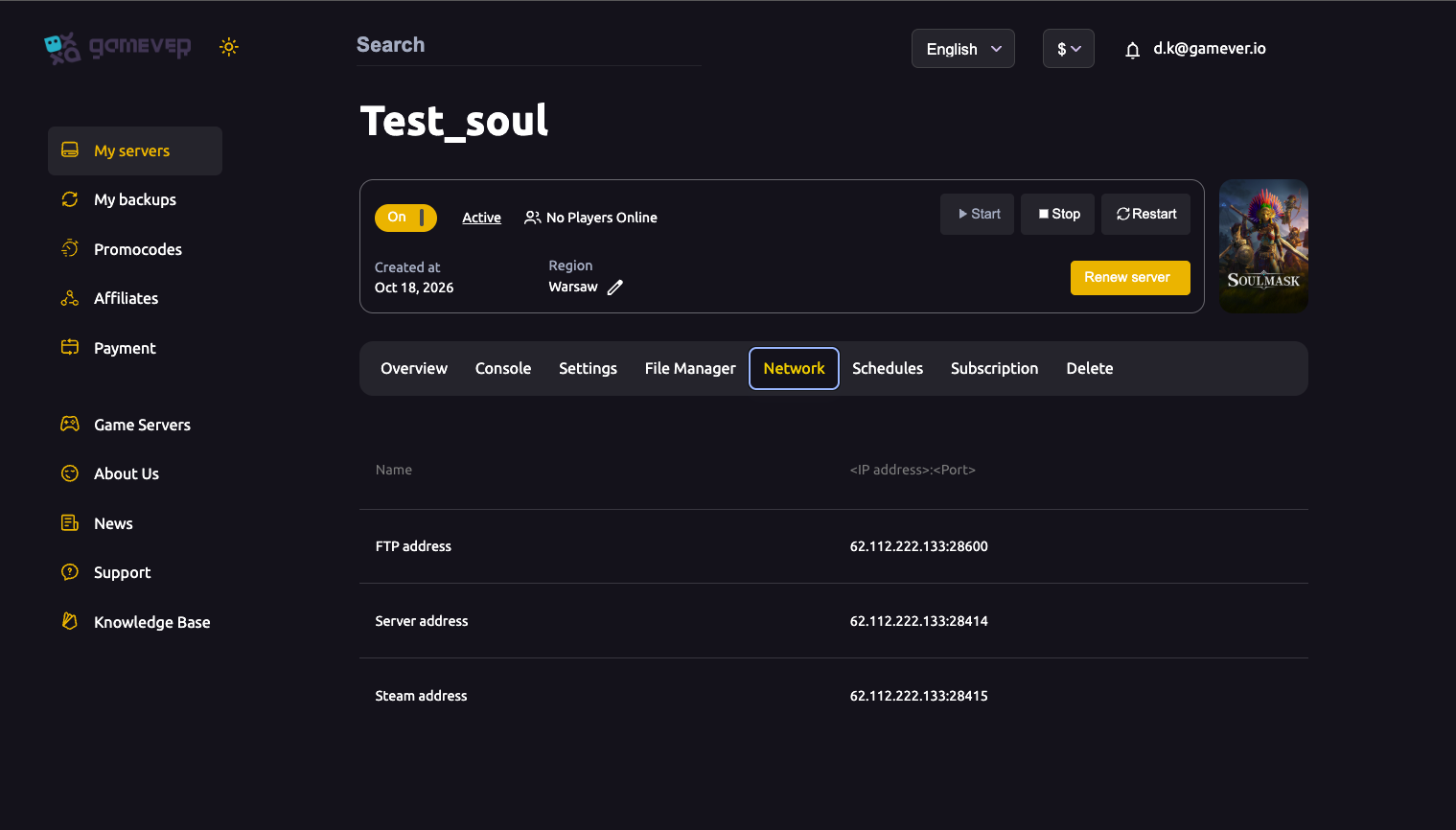
You'll see a Server address (shown as IP:28414 in the example), a Steam address (IP:28415) and an FTP address. Soulmask uses a game port plus a Steam query port, and the panel assigns both — there is nothing to open or forward on your end. Give joining friends the Server address exactly as shown, including the port after the colon. If the server isn't appearing in the in-game browser, having players connect with this address directly is the reliable path.
Check the server password
If players reach the server but are rejected, the Server password is the usual culprit. Open Settings → Server Settings and confirm the Server password field:
| Field | Meaning |
|---|---|
| Server password blank | Server is public — no password needed to join. |
| Server password set | Server is private — joiners must enter this exact value. |
A password is case-sensitive, so make sure everyone has the exact string with no stray spaces. If you change it, click Save, then Restart from Overview so the new value takes effect. (Don't confuse this with the Admin password, which is for in-game GM access, not joining.)
Version mismatch after an update
When Soulmask gets a patch, the client and the server must be on the same game version — a mismatch is a classic reason a server vanishes from the browser or throws a connection error right after an update day. If your friends updated their game on Steam but the server is still on the old build (or vice versa), joins will fail until both sides match.
On a gamever server the update is handled for you, but timing matters: after a Soulmask patch ships, bring the server up to date and Restart it so it's running the same build as everyone's client. For the full walkthrough, see updating your server. If only some players can join, check that the ones who can't have fully updated their own game.
"Connection to Host Lost" and dropped joins
A "Connection to Host Lost" message, or a connection that drops partway through loading, usually means the server was mid-restart, still booting, or briefly unreachable — not that anything is broken. Work through it in this order:
- Re-check Overview — confirm On/Active is on and the server has finished booting.
- Open the Console tab (or Overview's Full log) and read the latest lines for an actual error. The Console is the live server console with a command entry box; the error counter on Overview tells you whether something is being logged.
- Restart from Overview if the server looks wedged, wait for it to settle, then retry.
- Confirm the address and password again from the Network and Settings tabs.
If the Console shows a clear error, that message is your best lead for support. For a clean first-join walkthrough, see connecting and joining your server.
Additional Tips
- Retry after a restart. The single most common "fix" is simply waiting the extra minute for the world to finish loading.
- Copy the address, don't type it. A single wrong digit in the
IP:portwill fail silently — copy it straight from the Network tab. - Match versions on patch day. After a Soulmask update, make sure the server and every client are on the same build before blaming anything else.
- Passwords are exact. Server password is case-sensitive and space-sensitive; re-share it rather than assume it's unchanged.
- Read the Console. Overview's error counter and the Console tab tell you what's actually wrong — guess less, read more.
- Ports are our job. You never need to port-forward; the panel assigns the game and Steam query ports for you.
Conclusion
Nearly every failed Soulmask join traces back to one of five things: the server still booting, the wrong Server address, a mismatched Server password, a client/server version mismatch after an update, or a transient drop that a Restart clears. The panel gives you a quick path through all of them — check On/Active and restart from Overview, read the correct address on the Network tab, confirm the password under Settings, and let the Console tell you the rest. And because we assign and manage the ports, port-forwarding is never something you have to solve.
Rent your Soulmask server at gamever.io — panel-managed addresses, one-click restarts and a live Console so connection problems are quick to spot and fix. Free trial, promo code WELCOME.