Can't Connect to Your Factorio Server? Troubleshooting Guide
A Factorio server you rent from gamever runs as a headless server that we host and keep online for you — you manage it entirely through the control panel, never by installing anything yourself. So when someone can't connect, the fix is never "forward a port" (we assign and handle the ports for you). It's almost always one of a short list of causes: the server is still booting, a version mismatch, a wrong password, a config file that's stopping the server from starting, a mod mismatch, or the server simply isn't listed publicly yet. This guide walks each one, framed entirely around your gamever panel.
First: is the server actually up?
Before anything else, open the Overview tab and check the On/Active toggle and status at the top. A Factorio headless server also takes a moment to load the save after it starts, so a server that was just restarted may not accept joins for a few seconds. If it looks stuck or you changed a setting, click Restart and wait for it to come back.
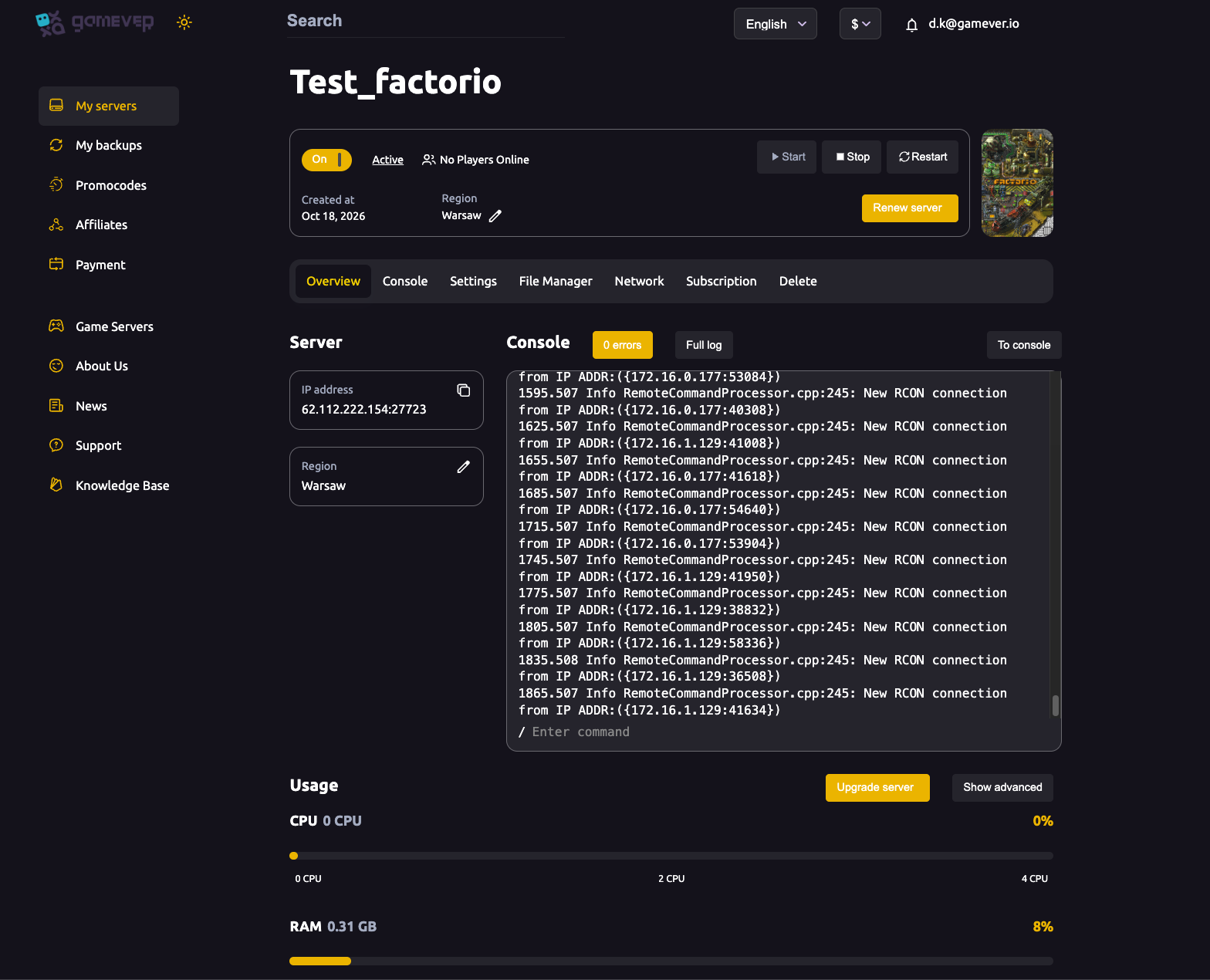
The Overview also shows a console preview with an error counter and a Full log link. If the counter is non-zero, that's your first clue — open the Console tab (or Full log) to read what the server is actually complaining about. Most connection problems announce themselves here.
Get the right connect address
Your players need the exact address the panel assigned. Open the Network tab and read your own Server address (shown as IP:PORT — for example IP:27723). That is what joiners type in-game.
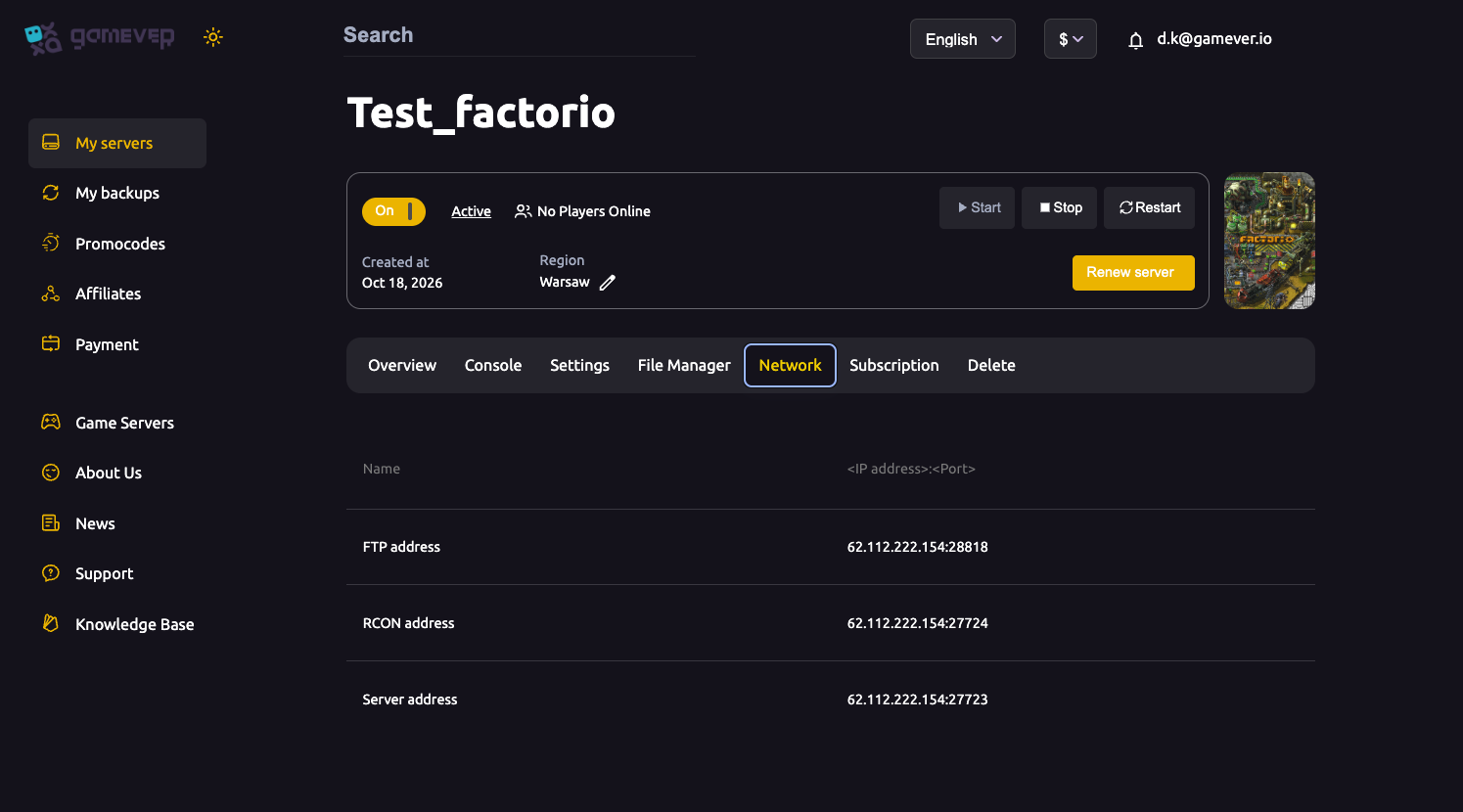
To join by that address, a player opens Factorio and goes to Multiplayer → Connect to address (also labelled Connect to server in some builds), then enters the IP:PORT from your Network tab. Factorio's own default game port is UDP 34197, but our panel assigns its own number — so always use the value shown on your Network tab, and never ask anyone to port-forward or open a port. We handle that for you.
The usual causes, and how to fix each
| Symptom | Likely cause | Fix (via the panel) |
|---|---|---|
| "Mods or game version do not match" / instant kick | Version mismatch — client and server are on different builds | Client and server must run the exact same Factorio version and build. See update your server version. |
| Prompt for a password, or "wrong password" | Join password set and not shared, or mistyped | Check / change the password; see set a server password. |
| Server never comes up after a config change | Config JSON error (often a trailing comma) | Read the Console / Full log, fix the JSON, restart. |
| Join fails with a mod error | Mod mismatch | Everyone needs the same mods and versions as the server. |
| Friends can't find the server in the browser | Not listed publicly — no username/token | Fill in the Authorisation tab. |
Version mismatch. Factorio requires every instance to run exactly the same game version — a client even one build ahead or behind the server will be refused. This is the single most common cause. Pin the build with Server Version under Settings → Server Settings (stable vs experimental), make sure everyone is on the matching client build, and if you need to move the server up or down a version see update your server version.
Wrong password. If you've set a join password, Factorio prompts for it and refuses a wrong entry. The password lives in the game_password setting and is managed from the panel — confirm what it's set to (and share it exactly, it's case-sensitive) using set a server password. A blank password means the server is open to anyone with the address.
A config error stopping boot. Factorio's config is strict JSON, and a single stray trailing comma will stop the server from starting at all — which looks, from a player's side, exactly like "can't connect." If you edited server-settings.json (or another JSON file) through the File Manager or FTP, open the Console / Full log and look for a JSON parse error naming a line. Fix the comma or bracket, stop the server before editing config files, save, and start again.
Mod mismatch. All connected instances need the same mods — joining clients must have the same mods and versions the server runs (mods that don't affect game state are the exception). If one player is kicked on a modded server while others get in, a mod or version mismatch is the first thing to check.
Not public yet. If people can't find your server in the in-game browser (but can still join by the direct address), it isn't listed publicly. Public listing needs a factorio.com account username and token filled in on Settings → Authorisation. Use the token from your factorio.com profile — never a player's email or account password. Without these, the server still works by direct address; it just won't advertise itself.
Additional Tips
- Read the Console first. Almost every connection failure — version, password, JSON, mods — prints a clear reason in the live Console or Full log. Start there before guessing.
- Restart after changes. After any Settings change, click Save, then Restart on Overview so the server picks it up.
- Stop before editing JSON. Config files are read at boot; stop the server, edit via File Manager or FTP, then start — and watch for trailing commas.
- Match versions deliberately. Agree on
stablevs experimental with your group so nobody drifts onto a different build. - Ports are ours. You never need to port-forward or set a port — the Network tab already shows the address we assigned.
- Token, not password. For public listing, use the factorio.com auth token on the Authorisation tab rather than your account password.
Conclusion
Most "can't connect" reports come down to a few things you can confirm in minutes from the panel: check On/Active and Restart on Overview, read your Server address on the Network tab for a direct Multiplayer → Connect to address join, and open the Console for the real error. From there it's usually a version mismatch, a wrong password, a trailing comma in a config file, a mod mismatch, or a missing username/token for public listing — each fixable without ever touching a port.
Rent your Factorio server at gamever.io — panel-managed ports, live Console, and full File Manager and FTP access so you can fix things fast. Free trial, promo code WELCOME.