
Can't Connect to Your Core Keeper Server? Ports and Troubleshooting
If you and your friends can't join your Core Keeper server, don't start by blaming firewalls or router settings. On a server you rent from gamever, the ports are handled for you, so a failed join nearly always comes down to one of a few simple things: a Game ID that has changed, a server that's still booting or stopped, a version mismatch after an update, or a wrong password. This guide walks through each cause and shows exactly where to check it in your gamever control panel — the Overview, Console, Network and Settings tabs — so you can get everyone back underground in a couple of minutes.
First: is the server actually up?
Before touching anything else, confirm the server is running. Open the Overview tab. The On/Active toggle at the top shows the current state, and the Start / Stop / Restart buttons let you cycle it. A server that was just started, restarted, or updated needs a short moment to finish booting before it will accept connections — if you try to join during that window, Core Keeper simply won't find it.
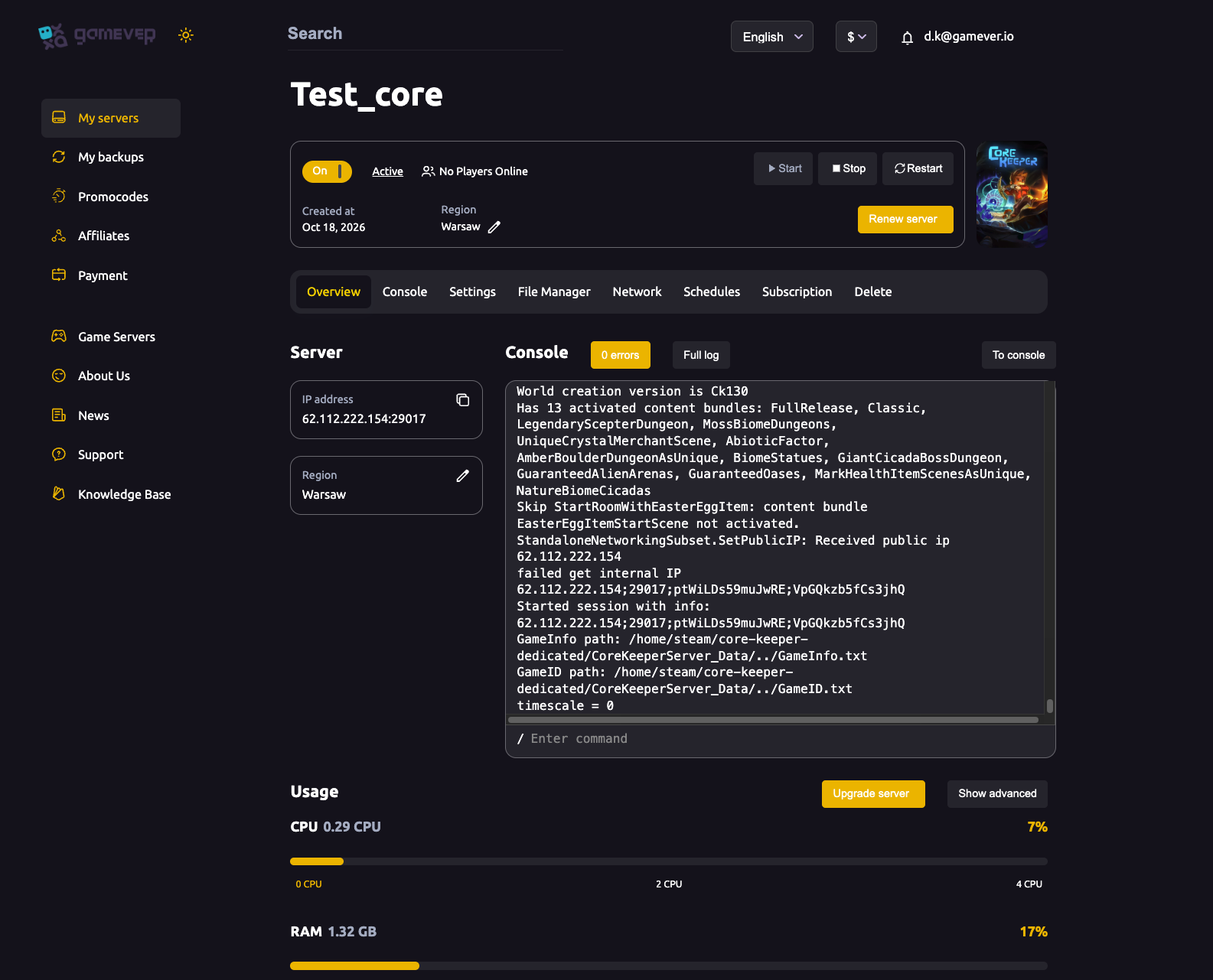
If the state looks wrong or the server seems hung, click Restart and wait for it to come fully back up. The Overview also shows a console preview with an error counter and a Full log link — a quick glance there tells you whether the server reached a ready state or stopped on an error.
The usual culprit: the Game ID has changed
Core Keeper's main join method is the Game ID — a unique string the server prints to its console every time it boots. Players paste it into Join Game in Core Keeper to connect. The catch that trips up most groups: the Game ID is auto-generated, so it regenerates on every reboot unless you pin a permanent one. If your server has restarted — after an update, a crash, or a scheduled task — the code your friends saved last week may no longer be valid.
To get the current code, open the Console tab. The session line printed at startup carries the live Game ID (shown alongside the address, port and password). Copy that exact value and share it with your group. For the full walk-through of where to find and how to share it, see connecting with your Game ID.
If you're tired of re-sending the code after every restart, pin it once: setting a fixed gameId in ServerConfig.json makes it survive reboots, so the same code works forever. That's covered step by step in set a permanent Game ID — well worth doing early, because it eliminates this entire class of "can't connect" reports.
Direct Connect by IP
Core Keeper also supports connecting by the server's address as an alternative to the Game ID. You'll find the value on the Network tab as the Server address (shown as IP:port). Read your own address there — don't reuse one from another server — and use it in the game's direct-connect option.
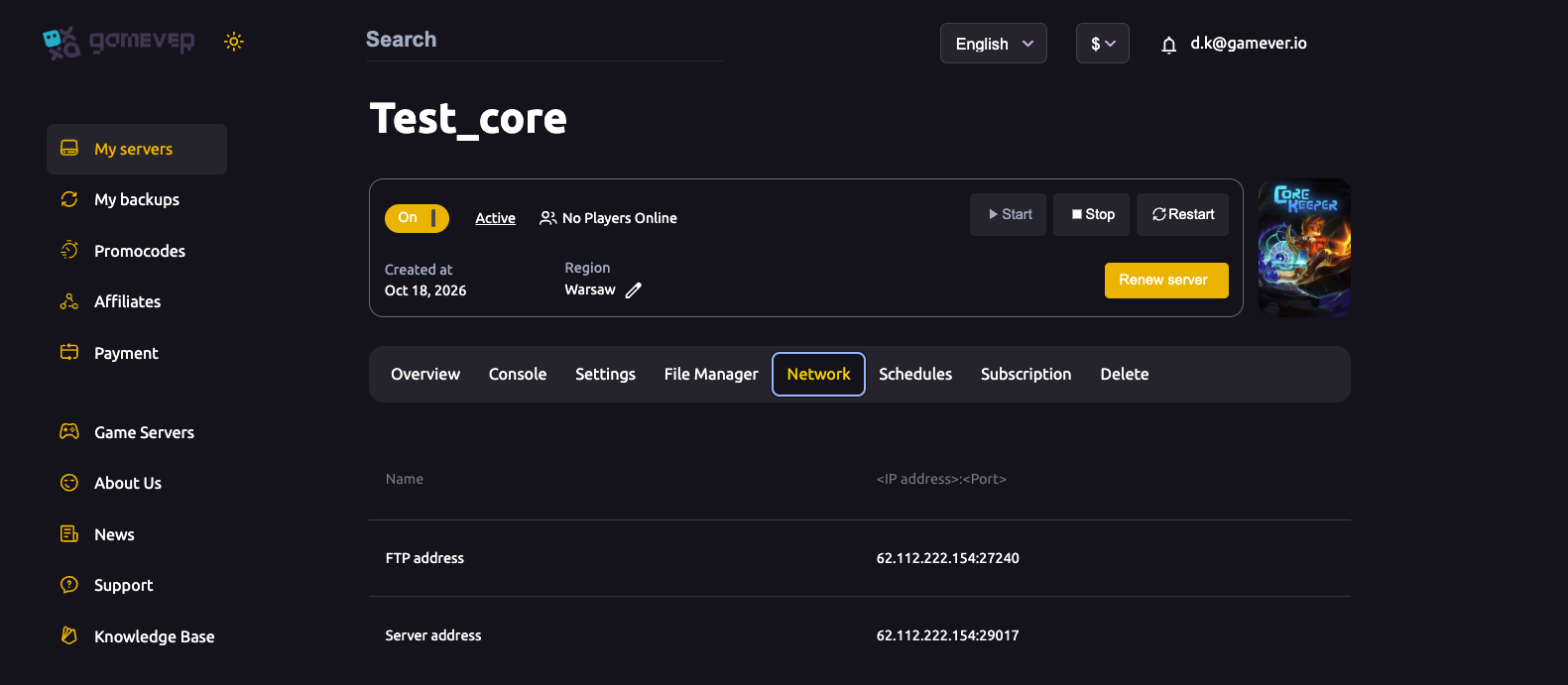
You do not need to port-forward or set a port. Core Keeper communicates over UDP, and our panel maps the port for you — the number shown on the Network tab is already live and reachable. There's nothing to open on a router and no port field to fill in. If a direct connection still fails, re-read the address exactly as it appears on this tab (a mistyped digit is the usual reason), and fall back to the Game ID, which is the more reliable path for most groups.
Version mismatch after an update
Core Keeper players must be on the same game version as the server. When Pugstorm ships a patch, your Steam client may auto-update before the server has been updated to match — and a client that's newer (or older) than the server will be refused. The Console prints the world-creation version (for example, a line beginning World creation version is Ck) at startup, which tells you what build the server is on.
If a join started failing right after a game update, bring the server up to the current build and restart it. The process is in update your Core Keeper server. Once the server and every player's client are on the same version, joins will work again.
Wrong password
If your server is password-protected, everyone must enter the exact password — it's case-sensitive, and a stray space will block the join. Core Keeper's password isn't a panel Settings field; it lives in ServerConfig.json, which you edit through the File Manager (root /home/configs/). Open that file and read the password value to confirm what's actually set, then share it precisely. If you change it, stop the server before editing the file and start it again afterwards, since the config is only read at boot.
Additional Tips
- Always share the current Game ID. After any restart, grab a fresh copy from the Console rather than reusing an old one — unless you've pinned a permanent
gameId. - Pin the Game ID once and forget it. Setting a permanent Game ID removes the single most common reason joins break.
- Give it a minute after a restart. A server that's still booting will reject connections; wait for the Console to show it's ready.
- Match versions. If joins fail right after a patch, update the server so it's on the same build as your clients.
- Re-read the Server address from the Network tab before blaming a direct connection — and remember the port is panel-assigned, so there's nothing to forward.
- Check the Full log from the Overview if the server keeps stopping; an error there explains far more than a generic "can't connect" message in the game.
Conclusion
Nearly every Core Keeper connection problem is one of four things, and all four are quick to check from the panel: confirm the server is On/Active (and Restart if not) on the Overview, re-read the current Game ID in the Console, grab the Server address from the Network tab for a direct connection, and verify the password in ServerConfig.json. Because ports are panel-assigned over UDP, port-forwarding is never part of the fix. Pin a permanent Game ID early and you'll rarely see a failed join again.
Rent your Core Keeper server at gamever.io — panel-assigned ports, live Console access and a File Manager so you're always in control. Free trial, promo code WELCOME.