
Backing Up and Restoring Your 7 Days to Die Server
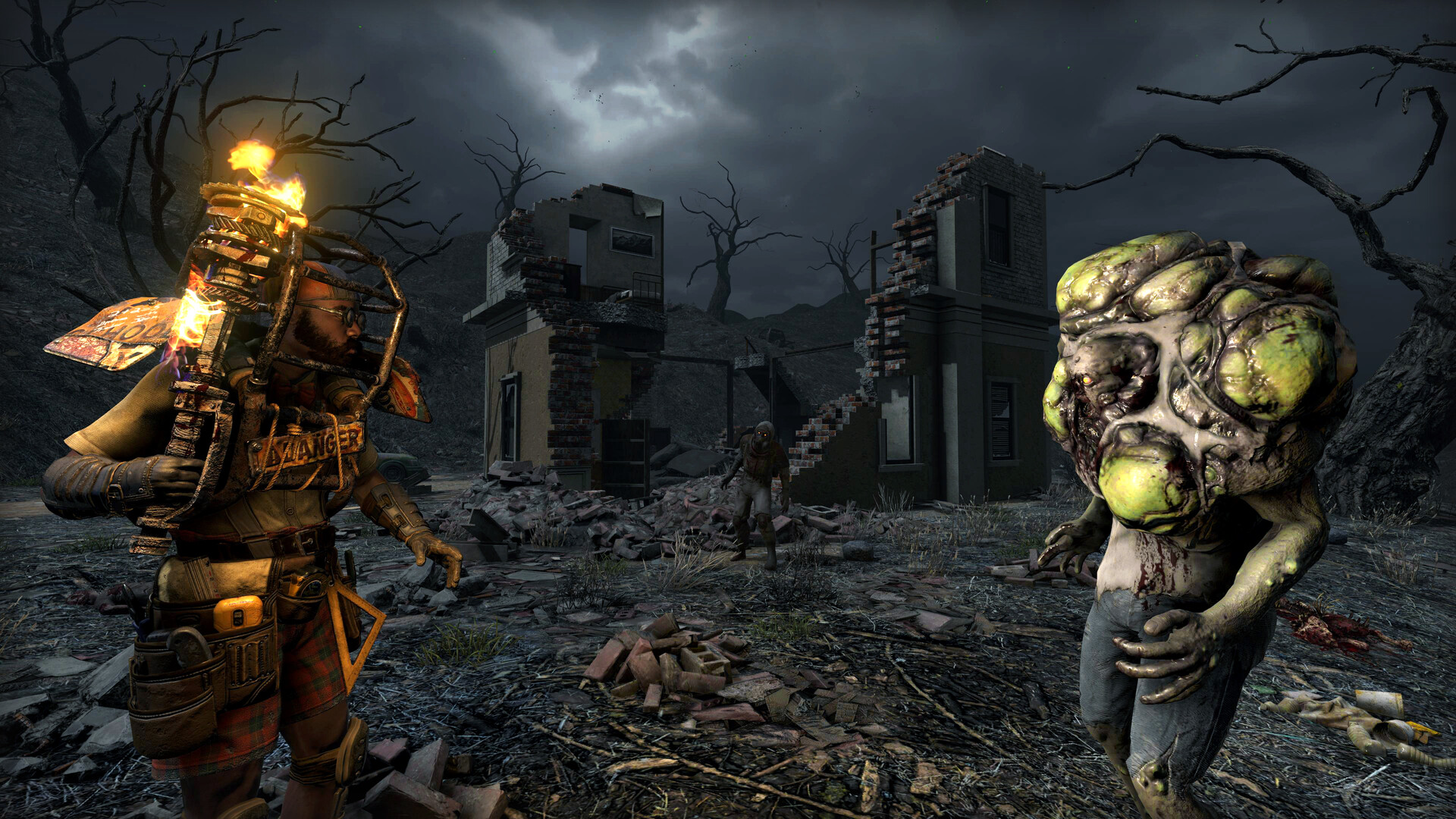
A 7 Days to Die world represents a lot of hours — a sprawling base, a stocked storage room, hard-won perks. A backup is your insurance against a bad update, a corrupted save or a change you regret. Your gamever server has a dedicated Backups tab for exactly this, and you can also pull your own copy of the save over FTP. This guide covers both.
The Backups tab
Your server has a dedicated Backups tab in the tab bar (Overview · Console · Settings · File Manager · Network · Schedules · Backups · Subscription · Delete). It keeps per-server backups so you always have a restore point to fall back to — the place to look when you need to roll the world back.
Make a habit of checking it before anything risky:
- Before a version change or update.
- Before changing world settings or doing a reset/wipe.
- Before installing mods.
Download your save over FTP
For an off-server copy you control, pull the save down over FTP. The credentials are on Settings → FTP server settings:
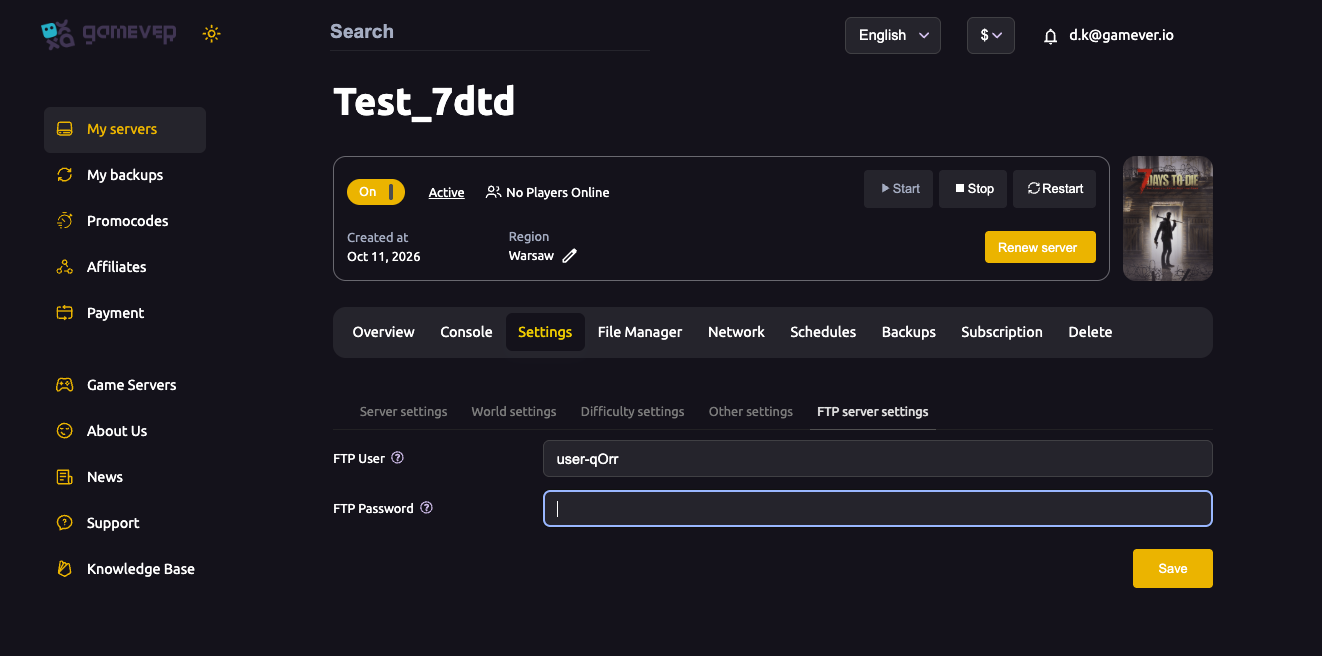
- Open Settings → FTP server settings and note the FTP User and FTP Password.
- Connect with any FTP client (the server address is on the Network/Overview tab).
- Download the save-game folder for your world (named after your Game name) to your own computer.
Now you have a personal copy you can keep as long as you like, independent of the server.
Restoring
- From the Backups tab: use it to roll the server back to a saved point — the fastest route when something's gone wrong.
- From an FTP copy: stop the server, upload your saved world folder back over FTP (replacing the current one), then start the server. Keep the folder name matching your Game name so the server loads it.
Always stop the server before overwriting its save files over FTP, so nothing is being written while you replace it.
Additional Tips
- Back up before anything risky — updates, world changes, mods.
- Keep an FTP copy off-server for your most important world.
- Stop the server before restoring over FTP — never overwrite a live save.
- Match the folder to your Game name so the restored world loads.
- Pair backups with a scheduled restart for a tidy, reliable server.
Conclusion
Backups turn a disaster into a minor inconvenience. Use the dedicated Backups tab for quick restore points, and pull an FTP copy of your save for the worlds you can't afford to lose. Check your backup before every update, world change or mod install — a thirty-second habit that protects weeks of survival.
Rent your 7 Days to Die server at gamever.io — a dedicated Backups tab and full FTP access, so your world is always safe. Free trial, promo code WELCOME.