
ARK Server Won't Start After an Update? Panel Fix Guide
A new ARK patch drops, the server restarts to update — and then it won't come back online, or it boots but nobody can join. The cause is nearly always one of a few things: the server image hasn't finished updating to the new build, a mod is out of date or broken, or a config change rode in with the restart. This guide walks through the fixes in the gamever panel, in the order worth trying, and says when to open a Support ticket. It applies to ARK: Survival Evolved and ARK: Survival Ascended.
First: back up before you touch anything
Before you change a single setting, take a snapshot. If a fix doesn't help, you want to land exactly where you started, not somewhere worse.
- Open your server → the Backups tab → Make Backup.
- This bundles your world and player data into a restore point you can roll back to in one click.
See our backups & schedules guide for the full flow. With a backup in hand, work down the list below.
Step 1 — Confirm the server image actually updated
ARK blocks the connection handshake if the client and server are on different builds, so the first job is making sure the server finished updating to the same version your game client is on.
- Open your gamever panel → Overview. Check the status and version there — after a game patch the server needs a restart to pull and apply the new build, and it isn't joinable until it reports On / Active and finished booting.
- Open the Console (on Overview and the Console tab). A big update can take several minutes to download and load; the log tells you whether it's still working or has stalled on an error.
- If the server is still on the old build after a restart, restart it again from Overview so it re-checks for the update. gamever updates the ARK server image for you — there's no SteamCMD to run and no launch flags to edit.
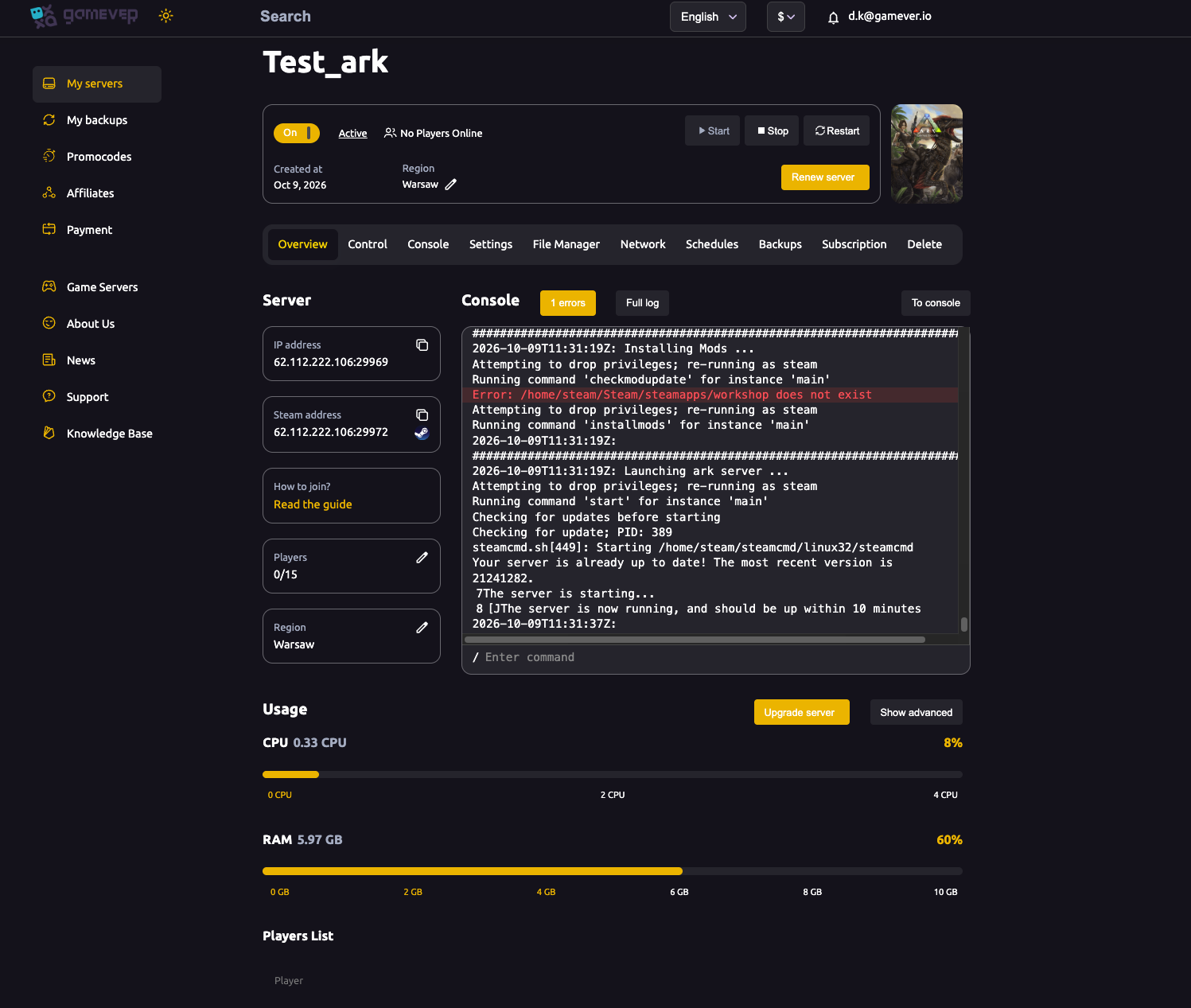
If the version still won't move after a couple of restarts, the image may need a clean reinstall — open a Support ticket (below) and we'll force it for you rather than you digging through files.
Step 2 — Fix a mod / version mismatch
If the server is online on the latest build but players still can't join — or it crashes on boot right after an update — a mod is the usual culprit. When ARK or a mod updates, an out-of-date or broken mod on the server will stop the world loading or block joins until it's sorted. The server pulls Steam Workshop mods, and the fix is to make sure it's holding the current version of each one.
Disable the broken mod first (fastest test). Go to Settings → Mod Settings and remove the most recently added or updated mod ID from the list (remove them one at a time), then Save and restart. If the server boots clean, you've found the offender.
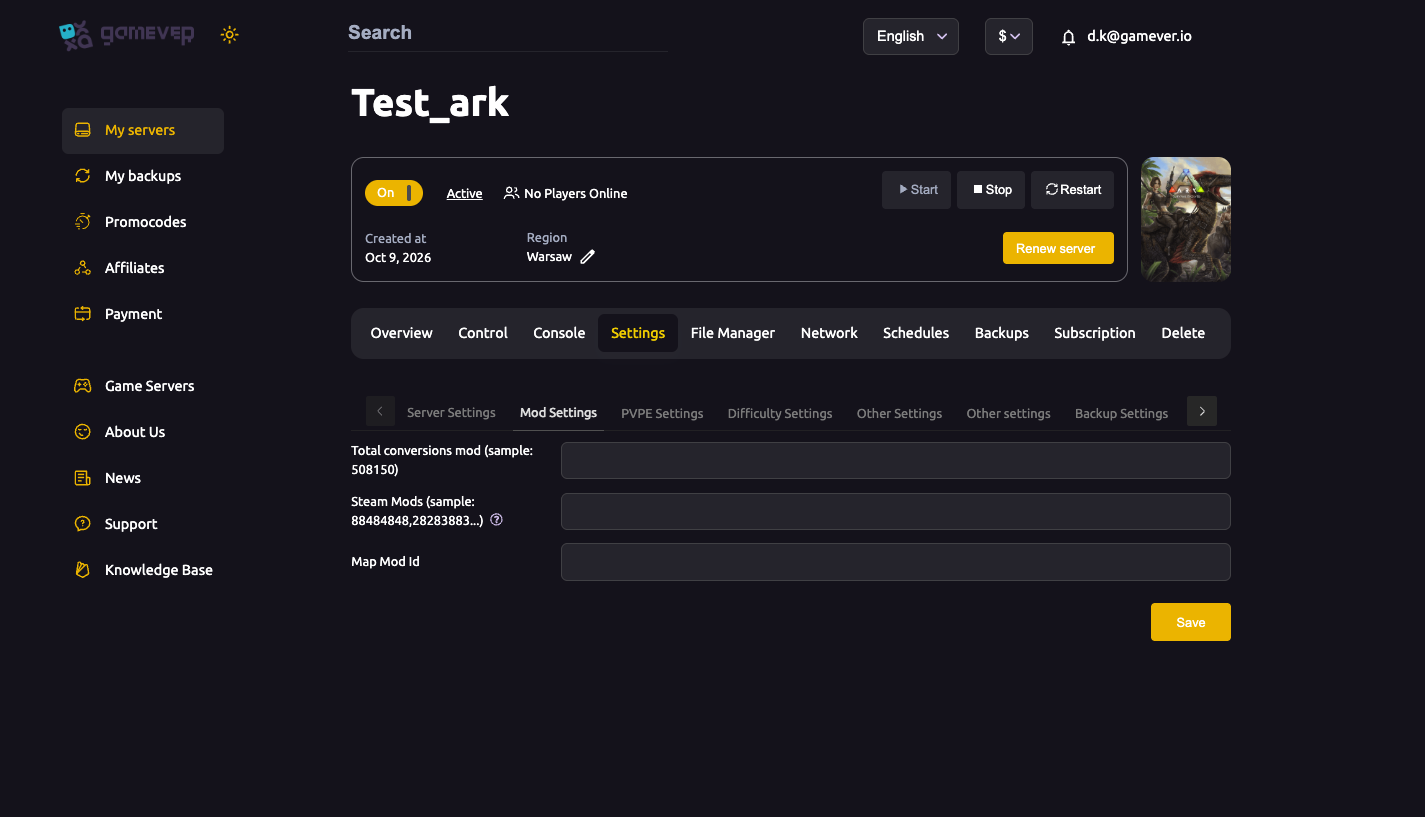
Force a fresh mod re-download. Sometimes the server keeps a stale copy of a mod after an update and won't pull the new files on its own. To force a clean download:
- Stop the server first — never edit files on a running world.
- In the File Manager, delete the downloaded files for that mod so the server has nothing cached for it.
- Start the server again. With no local copy present, it re-downloads a fresh, current copy of the mod on boot.
If you're not sure which folder holds the mod files, don't guess — a Support ticket is faster and safer than deleting the wrong thing. See our mod install guide for how Mod Settings and load order work.
Note: if a mod's author simply hasn't updated it for the new ARK patch yet, no server-side action will fix it — you (and your players) have to wait for the mod update. Disabling that mod gets the server back online in the meantime.
Step 3 — Roll back to a recent backup
If the update left the server unbootable and nothing above helped, roll back to the snapshot you took (or the last automatic one):
- Backups tab → pick a recent row → Install Backup. That restores the world and player data to that point in one click, with no file juggling.
- A rollback undoes world and character progress made since that snapshot, so pick the most recent backup from before the problem started.
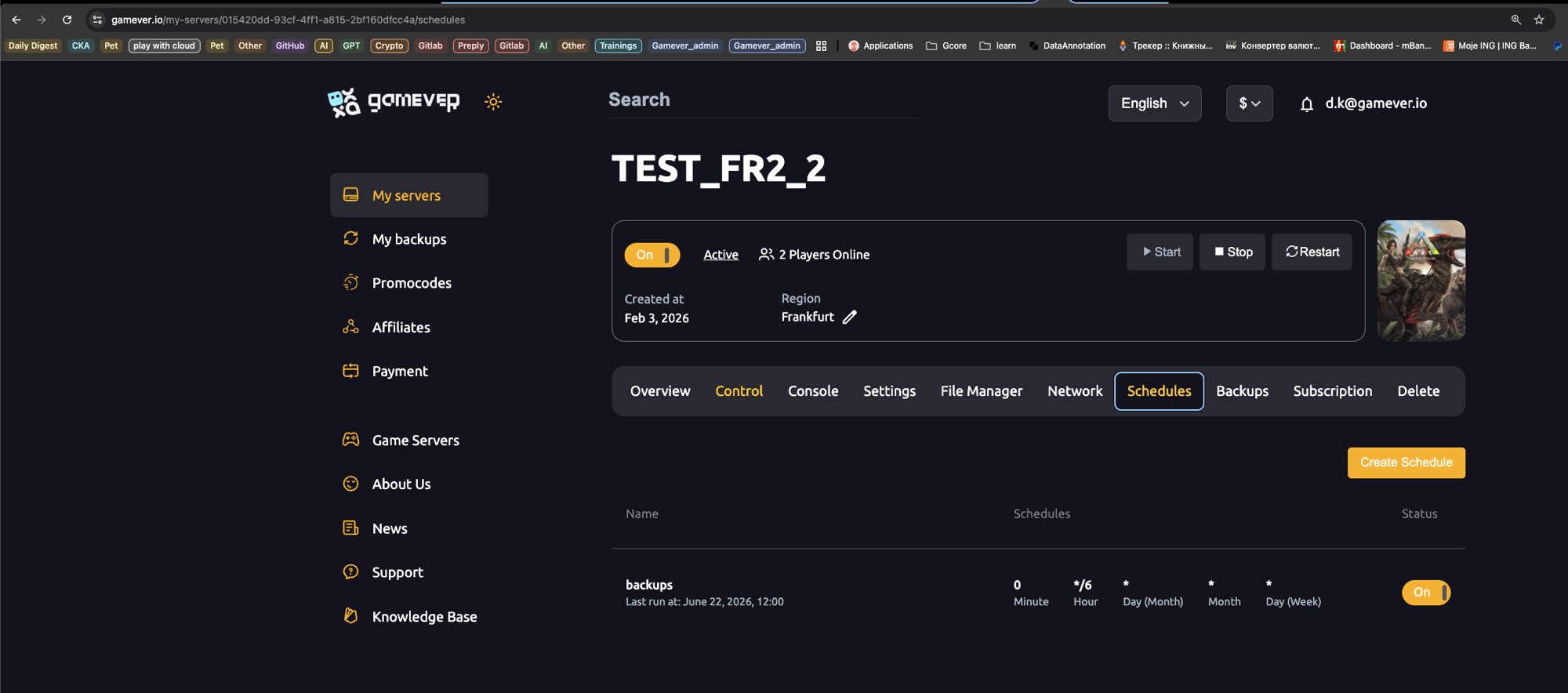
Automatic backups are worth keeping on for exactly this reason (Settings → Backup Settings → Backup every) — details in the backups & schedules guide.
Step 4 — When to open a Support ticket
Some things are faster for us to fix than for you to chase. Open a ticket (the Console tab has a Create Ticket button) when:
- The server stays on the old build after repeated restarts, or won't finish updating.
- You need the server image reinstalled / repaired cleanly.
- You can't tell from the Console log why it's crashing on boot.
- You're unsure which files to touch for a forced mod re-download.
Tell us the exact error from the Console log and roughly when the update broke things — that gets you a faster answer.
Additional Tips
- Always snapshot before an update. A manual Make Backup before a known patch day turns a broken update into a thirty-second rollback.
- Keep client and server on the same build. A "joining failed" after a patch is often just your game client updating before (or after) the server did — see our can't-join troubleshooting guide.
- Read the Console log. The reason a server won't boot is almost always printed there — that's the first thing Support will ask for.
- Change one thing at a time. Disable one mod, restart, re-check — bulk changes make it impossible to tell what fixed (or broke) it.
- Don't edit a running server's files. Stop it before deleting mod files or restoring, or you risk corrupting the save.
Conclusion
A server that won't start after an update is almost always a build that hasn't finished updating, a stale or broken mod, or a config change that needs rolling back — all fixable from the panel without touching a command line. Confirm the update on Overview, test by disabling the suspect mod in Mod Settings, force a fresh mod download via the File Manager if needed, and fall back to Install Backup if all else fails. Still stuck? That's what Support is for.
Rent your ARK server at gamever.io and ride out every patch day with one-click updates, automatic backups, a live console and real human support. Free trial, promo code WELCOME.