
ARK Server Backups & Schedules: Never Lose Your World
A corrupted save, a bad .ini edit, a mod gone wrong — any of these can wipe weeks of progress in seconds. The fix is boring but vital: automatic backups plus a couple of scheduled tasks. This guide shows how to back up, restore and automate your ARK: Survival Evolved server on gamever, and explains how autosave, backups and schedules differ.
Autosave vs backup — not the same thing
These get confused constantly:
- Autosave (
AutoSavePeriodMinutesin GameUserSettings.ini) writes the live world file every few minutes so a crash loses minutes, not hours. It overwrites the current save — it is not a restore point. - A backup is a snapshot of the world taken at a moment in time and kept separately, so you can roll back to it later or download a copy. This is your real safety net.
You want both: frequent autosave for crash safety, plus regular backups for "undo."
Where your save lives
On a gamever server the world and player data sit in the file manager at:
/home/server/ShooterGame/Saved/SavedArks/
<MapName>.ark— the world itself (e.g.TheIsland.ark).<SteamID>.arkprofile— one per player (character, level, inventory).<TribeID>.arktribe— one per tribe.
A backup bundles these together so a restore brings back the whole world and everyone's progress.
Taking & restoring backups (gamever)
Open your server → the Backups tab:
- Make Backup — creates a snapshot on demand. Do this before any risky change (mod, big
.iniedit, version update). - Each backup row shows its date and size, with two buttons:
- Install Backup — restores that snapshot, rolling the world back to it (one click, no file juggling).
- Download Backup — saves a copy to your own PC for off-site safekeeping.
The account-wide My backups entry in the left sidebar lists backups across all your servers in one place.
Manual restore (file way): if you'd rather do it by hand, a backup is just a
.ark— stop the server, rename your backup<mapname>-<time>.arkto<MapName>.arkinSavedArks/, and start. The one-click Install Backup does exactly this for you.
Automating backups
Don't rely on remembering. Go to Settings → Backup Settings and set Backup every to an interval (e.g. 6h). The panel then snapshots your world on that schedule automatically — fresh servers usually ship with this already on.
Save first for a clean snapshot. A backup captures whatever is currently on disk. To be sure the latest moments are included, run
SaveWorldin the web console (or Control → Save server) just before a manual backup.
Scheduled tasks (restarts & more)
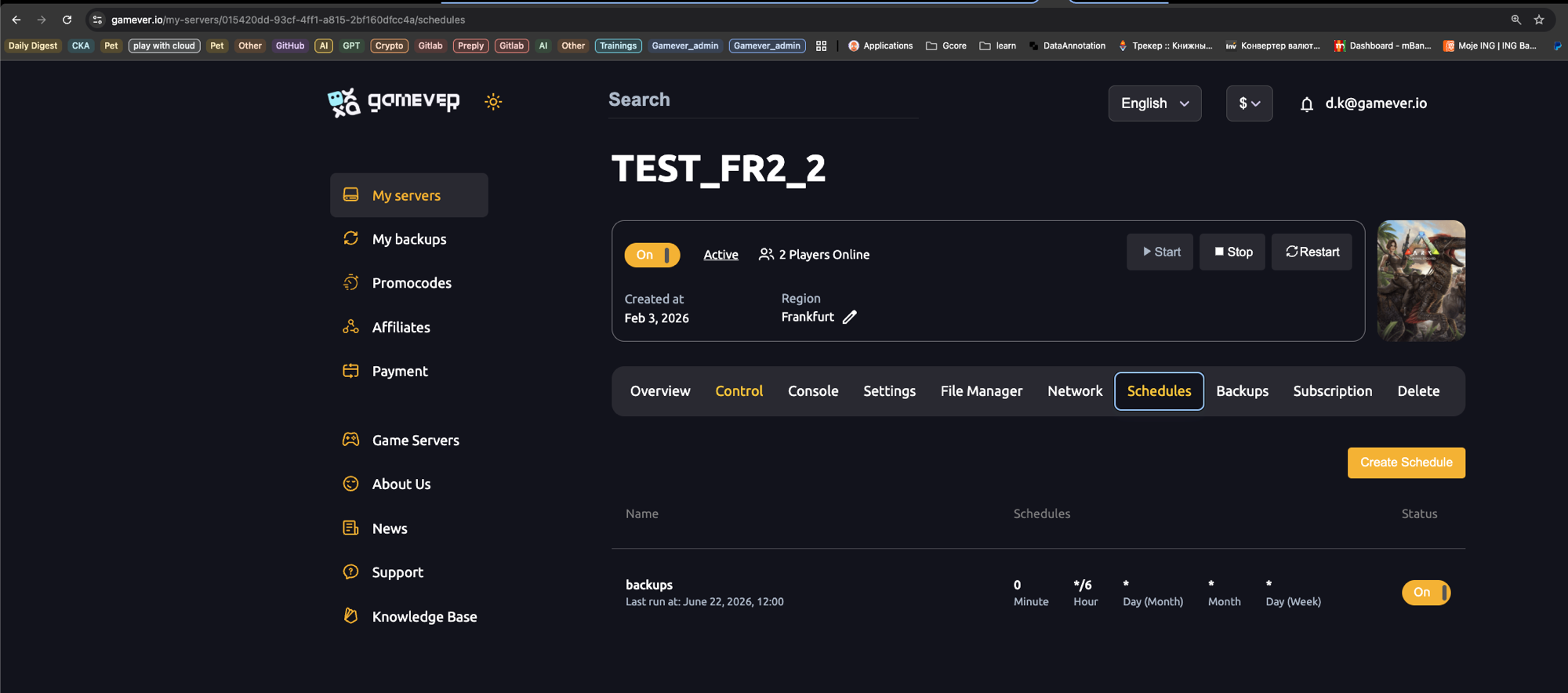
The Schedules tab runs recurring tasks on a cron timetable — five fields: Minute, Hour, Day (Month), Month, Day (Week). Click Create Schedule, give it a name, set the timing, and toggle it On. Your server typically already has a backups schedule (e.g. every 6 hours).
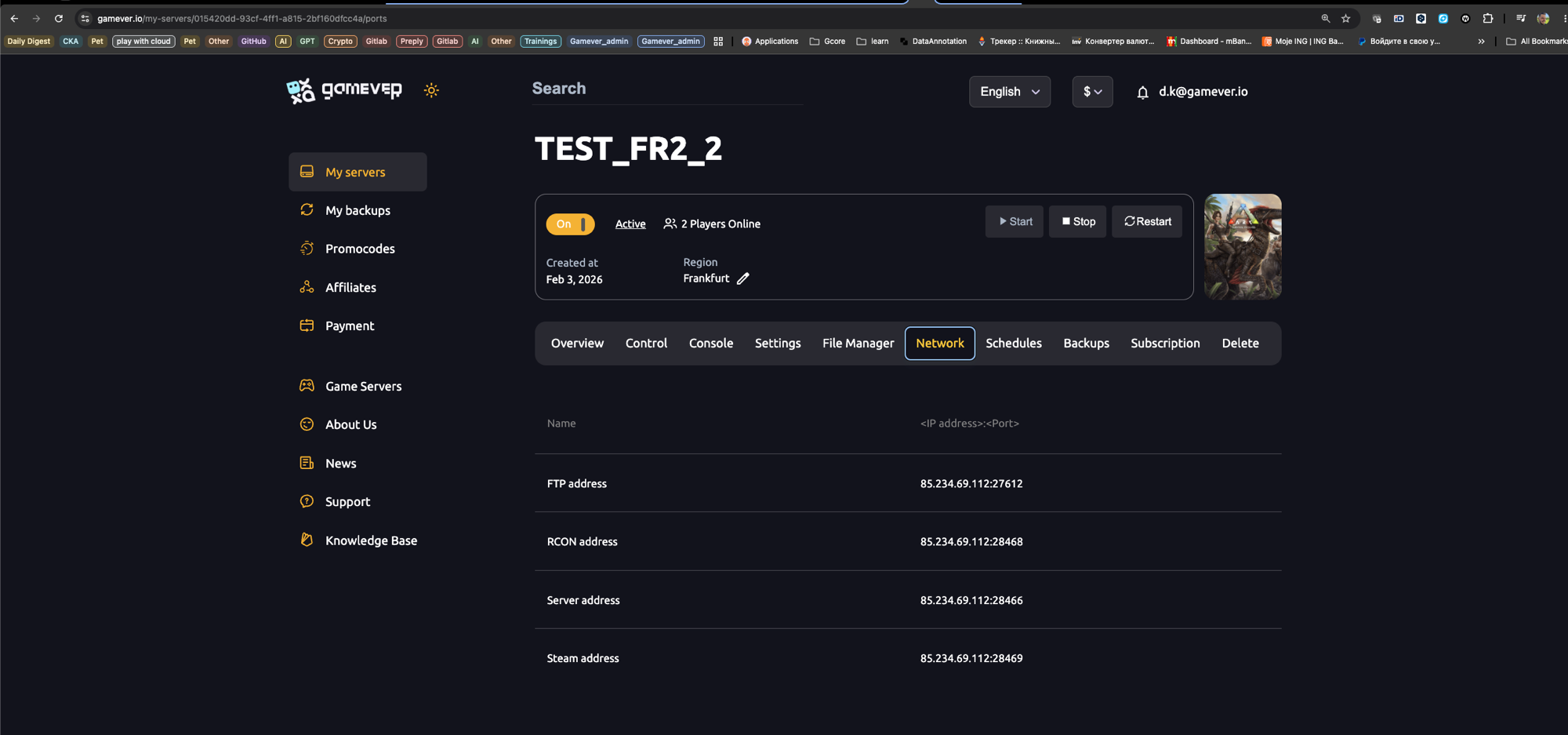
The single most useful schedule to add is a daily automatic restart. ARK's memory use creeps up over long uptimes, so a restart in the quiet hours keeps performance smooth. A few cron examples:
| When | Minute | Hour | Day(M) | Month | Day(W) |
|---|---|---|---|---|---|
| Every day at 05:00 | 0 | 5 | * | * | * |
| Every 6 hours | 0 | */6 | * | * | * |
| Mondays at 04:30 | 30 | 4 | * | * | 1 |
Warn your players. Before a scheduled restart, a quick
Broadcast Server restart in 5 minutes(web console or Control → Broadcast) saves a lot of rage. See our admin commands guide.
Best practices
- Back up before every risky change — mods, big config edits, version jumps. Take a manual snapshot first; if it breaks, Install Backup and you've lost nothing.
- Keep auto-backups on (Settings → Backup Settings) so you always have recent restore points.
- Download a copy before anything truly major — off-site beats on-server if the worst happens.
- Schedule a daily restart to keep ARK's memory in check.
- Don't overwrite a running save — restoring/uploading while the server is live can corrupt the world. Stop it first (the Install Backup flow handles this for you).
Conclusion
Backups turn "we lost everything" into "give me thirty seconds." Keep automatic backups running, snapshot before risky changes, and add a daily restart — and your tribe's hundreds of hours are safe no matter what goes wrong.
Rent your ARK server at gamever.io with one-click backups, automatic snapshots and cron-style schedules built in — restore your world in seconds, online 24/7. Free trial, promo code WELCOME.