
Admins and Bans on Your V Rising Server
Running a healthy V Rising server means deciding who has admin power and who's shown the door. On gamever that's three things: the RCON password for remote console control, the adminlist for in-game admins, and the ban lists for keeping people out. This guide covers each.
RCON — remote console
The Settings tab has an Rcon password field (it's required). RCON lets admin tools and the panel console send commands to the server remotely. The RCON address is on the Network tab (:27164).
- Set a strong Rcon password on Settings and keep it private.
- RCON is also configured in
ServerHostSettings.json(theRconblock), but the Settings field is the easy way.
In-game admins
Admins are listed in adminlist.txt in the File Manager:
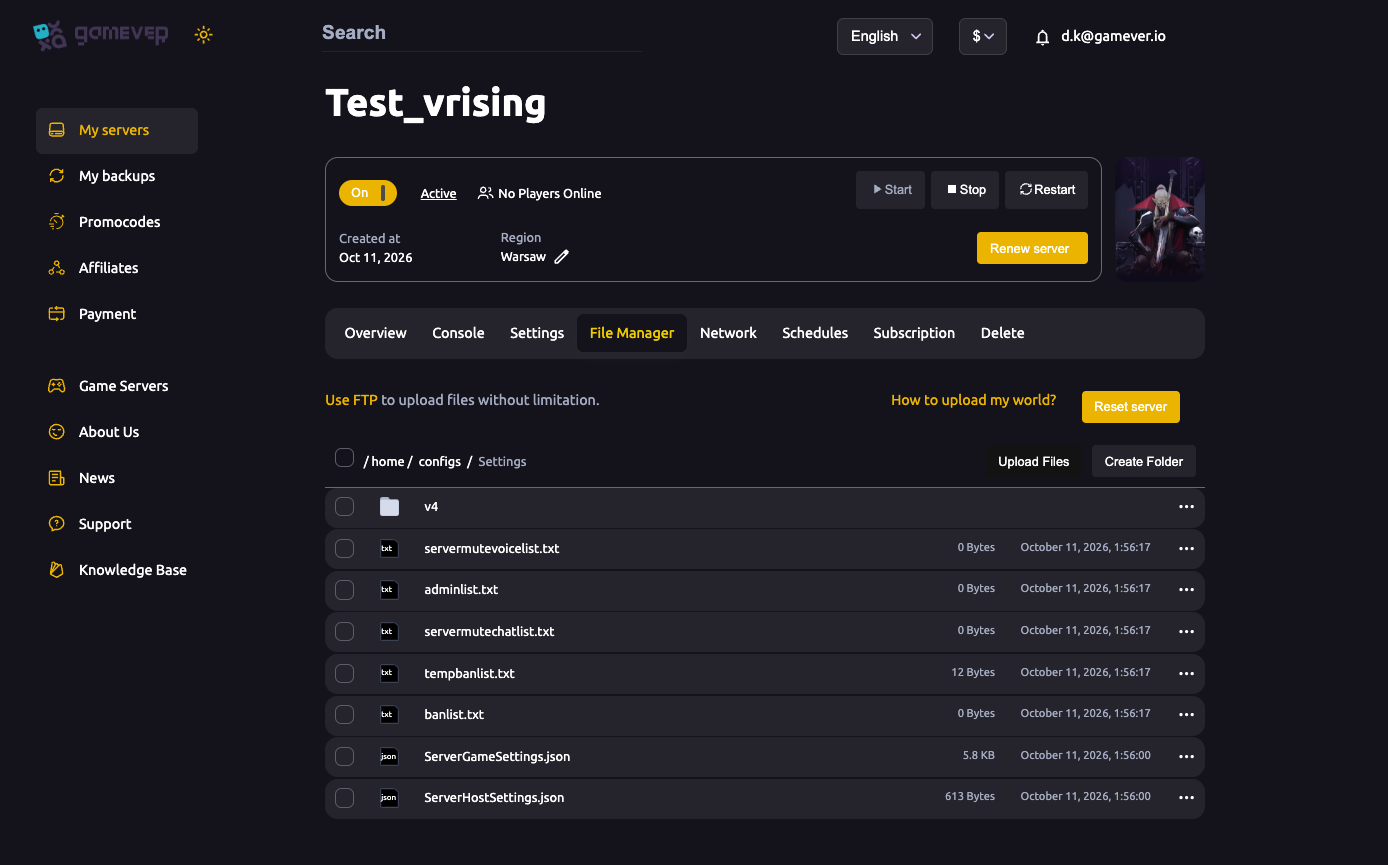
The file is at /home/configs/Settings/adminlist.txt. To add an admin:
- Open
adminlist.txtin the File Manager (or over FTP). - Add the player's Steam ID, one per line.
- Restart the server (or reload the list) so it takes effect.
Admins can then use in-game admin commands. Keep the list short — admin is powerful.
Bans and mutes
The same folder holds the moderation lists:
| File | What it does |
|---|---|
| banlist.txt | Permanently banned Steam IDs. |
| tempbanlist.txt | Temporary bans. |
| servermutechatlist.txt | Players muted in text chat. |
| servermutevoicelist.txt | Players muted in voice chat. |
To ban someone, add their Steam ID to banlist.txt (one per line) and restart or reload; remove the line to unban. You can also ban in-game with admin commands, which write to these same lists.
Finding a player's Steam ID
You'll need the player's SteamID64 for these lists. Players can find theirs via their Steam profile URL or a Steam ID lookup; or watch the Console when they connect — joins are logged.
Additional Tips
- Set the Rcon password first — it's required and protects remote control.
- One Steam ID per line in every list file.
- Restart (or reload) after editing so changes take effect.
- Keep the admin list tiny — only people you fully trust.
- Use tempbanlist.txt for cool-offs so you don't have to remember to unban.
Conclusion
Moderation on V Rising is three layers: a strong Rcon password for remote control, adminlist.txt for your trusted in-game admins, and the banlist/tempbanlist/mute files for everyone else. All of them live in /home/configs/Settings/ in the File Manager (or over FTP) — edit, restart, and your server stays yours.
Rent your V Rising server at gamever.io — RCON, a browser file editor and full FTP so moderation is a few clicks. Free trial, promo code WELCOME.