
Abiotic Factor Server Settings Explained
Abiotic Factor's panel settings are intentionally lean: you name the server, optionally lock it with a password, and name the world it runs. That's it on the panel — and that's by design, because almost all of the gameplay tuning in Abiotic Factor is set in-game when you create or load a world, not server-side. This guide explains each panel field and is honest about where everything else happens.
The Settings page
Open the Settings tab. It's a single page (no sub-tabs) with an FTP block underneath:
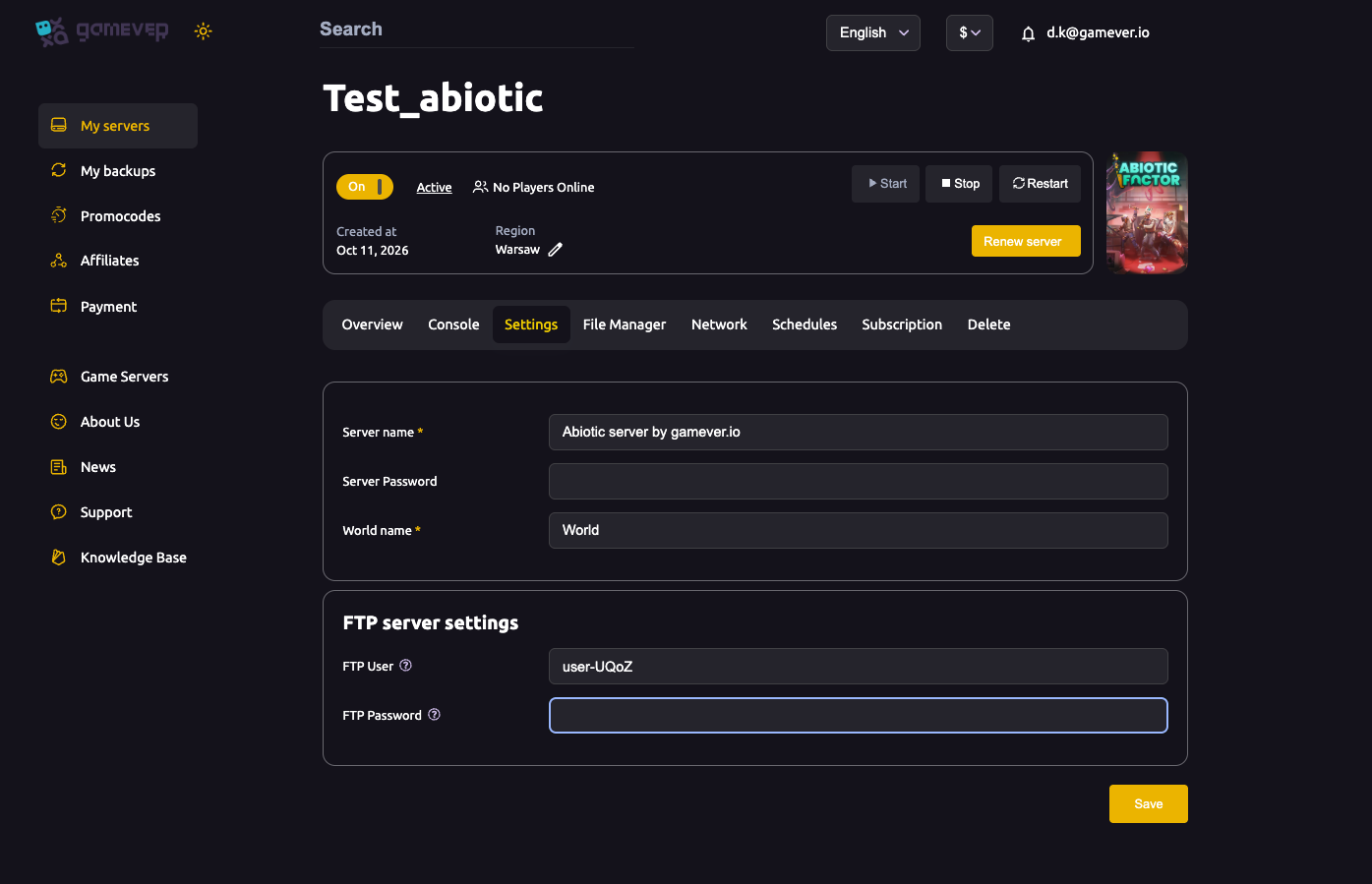
| Field | What it does |
|---|---|
| Server name * | The name your server is known by (e.g. "Abiotic server by gamever.io"). Required. |
| Server Password | Leave blank for an open server, or set a password to make it private — see password & privacy. |
| World name * | The name of the world/save the server loads (e.g. "World"). Required. Changing it is how you start a fresh world. |
Below those is the FTP server settings block:
| Field | What it does |
|---|---|
| FTP User | Your FTP username, for connecting to the server's files (FTP address :28545). |
| FTP Password | The matching FTP password. |
Change what you want, click Save, then Restart from Overview to apply.
That is the full set of panel Settings fields. There are no extra tabs for difficulty, PvP, hunger or respawn on the panel — if you're looking for those, they're in-game (see below).
Where the gameplay tuning actually lives
This is the honest part: in Abiotic Factor, the difficulty and world rules — things like enemy difficulty, friendly fire/PvP, hunger and survival pacing, and similar options — are chosen in the game's own host/world options when you create a new world or load an existing one, not in the hosting panel. Set your world up the way your group likes it in-game; the gamever panel's job is to keep that world's server online, named and (optionally) passworded.
The server's config folder is visible in the File Manager at:
/home/server/Engine/Saved/Config/WindowsServer/
which contains Manifest.ini. Your world/save data lives under the Abiotic Factor save tree, which you manage over FTP. For most servers you won't need to touch the config files at all — the three panel fields plus your in-game world setup cover it.
Additional Tips
- Only three panel fields — Server name, Server Password, World name. Don't go hunting for more; the rest is in-game.
- Server name and World name are required (marked with *); the password is optional.
- Save, then Restart for changes to take effect.
- World name is also your wipe lever — a new name loads a fresh world (see reset & wipe).
- FTP login is right here on this page — you'll use it to back up and upload worlds.
Conclusion
gamever keeps Abiotic Factor's panel settings to the essentials — name the server, lock it if you want, name the world — because the game itself owns the gameplay rules through its in-game host options. Set those once in-game, fill in the three panel fields, save and restart, and your server runs exactly the campaign your group wants.
Rent your Abiotic Factor server at gamever.io — a clean panel for the essentials and full FTP access for the rest. Free trial, promo code WELCOME.