
7 Days to Die Server Settings Explained

Your 7 Days to Die server's identity and core behaviour live on one page: Settings → Server settings. This is where you name the server, set its password, choose the game version, and toggle anti-cheat and the Undead Legacy overhaul. This guide walks every field and what to put in it.
Server settings
Open Settings → Server settings:
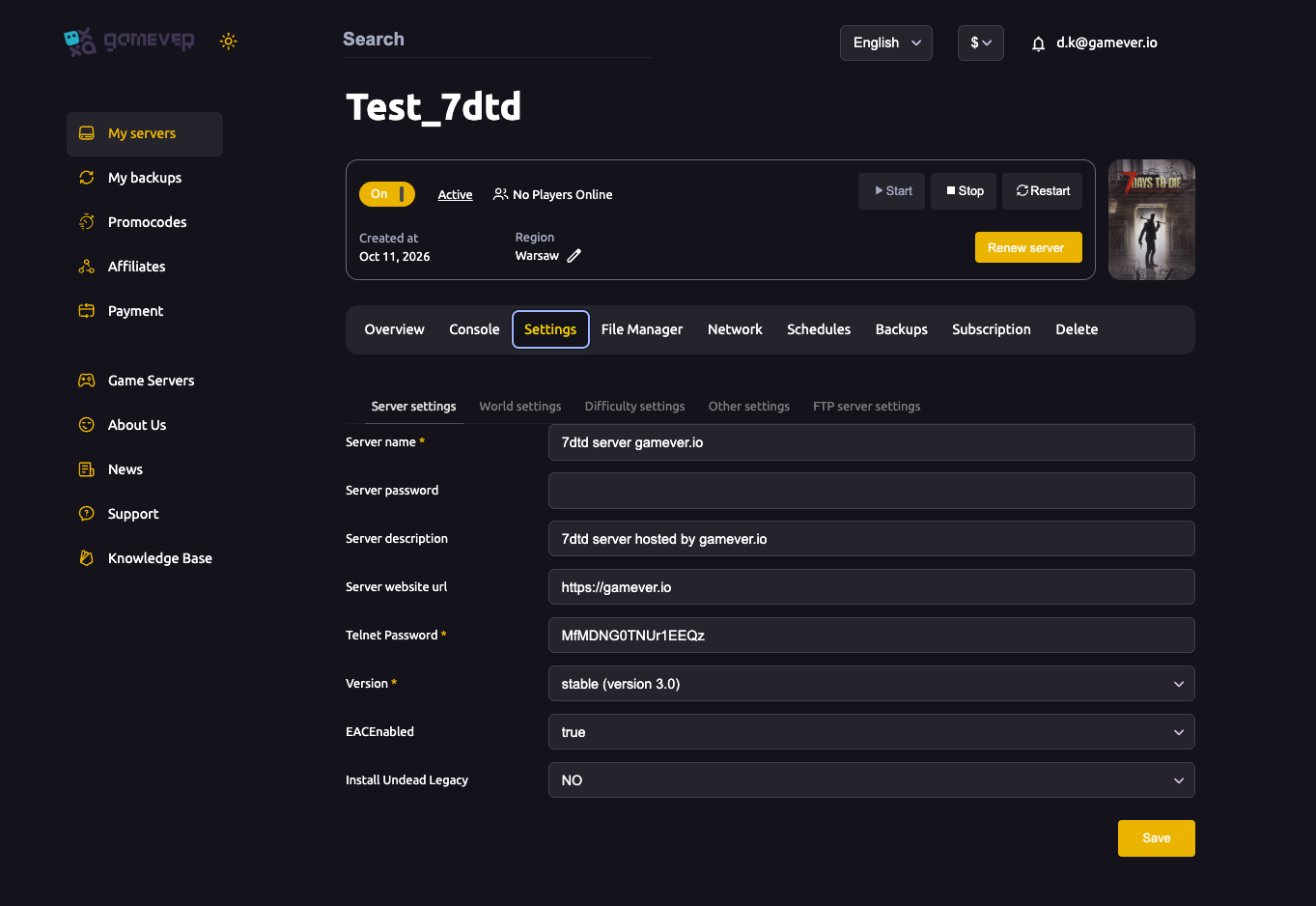
| Field | What it does |
|---|---|
| Server name | The name shown for your server. Required. |
| Server password | Leave blank for a public server, or set one to make it private — players type it when joining. See password & admin. |
| Server description | A short line describing your server. |
| Server website url | An optional link shown with your server. |
| Telnet Password | 7DTD's remote admin uses Telnet (not classic RCON). This password protects that remote console — set a strong one. See password & admin. |
| Version | The game build, e.g. stable (version 3.0). Changing it updates the server on restart — see update & version. |
| EACEnabled | Easy Anti-Cheat, true/false. Keep true for vanilla; it must usually be off to run certain mods — see install mods. |
| Install Undead Legacy | A one-click toggle (YES/NO) for the Undead Legacy overhaul mod — see install mods. |
Change what you want, click Save, then Restart from the Overview tab so the new settings take effect.
Required vs. optional
- Required: Server name and Telnet Password (both marked with a
*in the panel). - Optional but recommended: a Server password for a private group.
- Leave alone unless you mean it: EACEnabled and Install Undead Legacy both change how clients must connect — don't flip them casually mid-wipe.
Where the rest lives
The Server settings tab covers the server's identity and security. The gameplay knobs are split across the sibling tabs:
- World — map, seed, size — see world settings.
- Difficulty — difficulty, loot, zombies, land claims — see difficulty settings.
- Other — login text and day length — see other settings.
Under the hood these all write to serverconfig.xml, which advanced users can also edit directly over FTP or the File Manager — but for almost everyone the Settings tabs are all you need.
Additional Tips
- Set a Telnet Password even on a private server — it guards remote admin.
- Blank Server password = public — anyone with the IP can join.
- Pin your Version deliberately; auto-moving to a new build forces every player to update — see update & version.
- EAC and mods conflict — most overhaul mods need EAC off; plan that before you open to players.
- Always Save then Restart — settings apply on the next start.
Conclusion
The Server settings sub-tab is your 7 Days to Die server's front door: name it, decide whether it's public or password-locked, set the Telnet admin password, pick the version, and choose your anti-cheat and Undead Legacy posture. Save, restart, and the rest of the gameplay tuning waits for you on the World, Difficulty and Other tabs.
Rent your 7 Days to Die server at gamever.io — every key setting in one panel, plus FTP and a browser editor for serverconfig.xml. Free trial, promo code WELCOME.