
7 Days to Die Difficulty Settings Explained
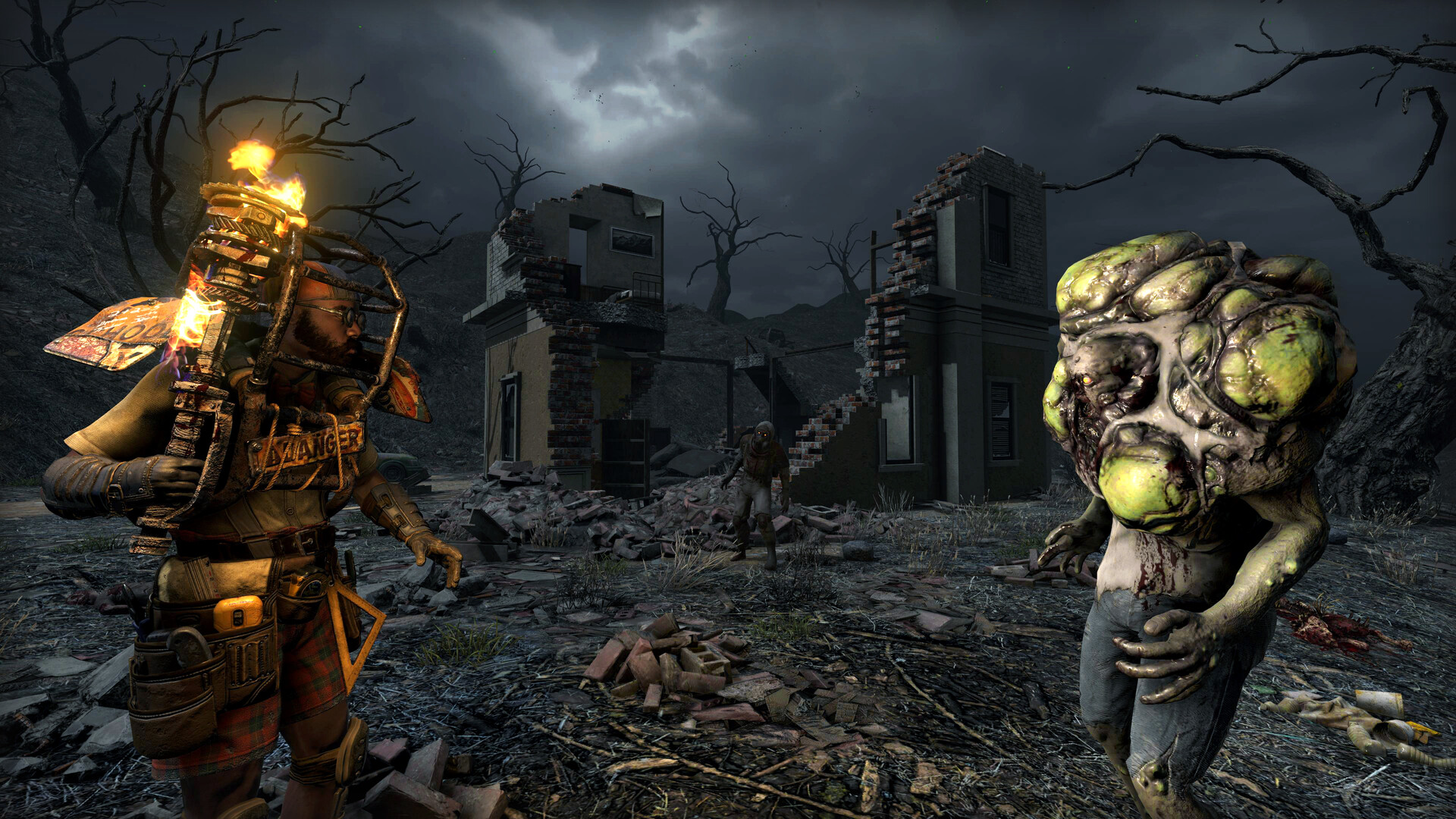
The Settings → Difficulty settings sub-tab is the biggest set of knobs on your 7 Days to Die server. It controls combat difficulty, how loot works, how many zombies roam and horde, what happens when players die, and how land claims decay. This guide explains every field so you can dial in a world that's challenging but fair.
Difficulty settings
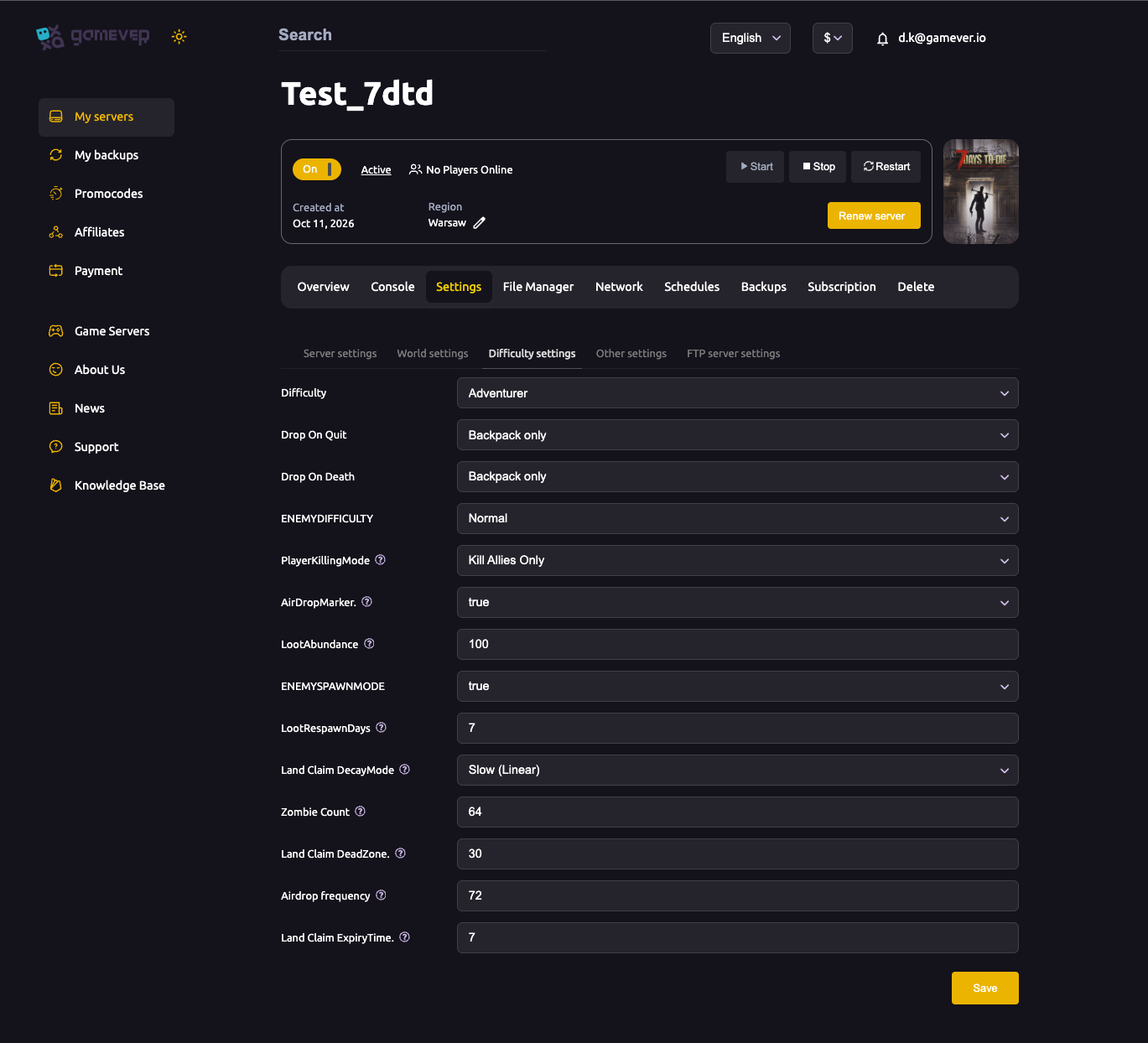
Open Settings → Difficulty settings:
| Field | What it does |
|---|---|
| Difficulty | Overall combat difficulty (e.g. Adventurer and other levels) — raises/lowers how hard zombies hit and how tanky they are. |
| Drop On Quit | What you drop when you quit the game — e.g. Backpack only, or nothing. |
| Drop On Death | What you drop when you die — e.g. Backpack only (and other options up to everything). |
| ENEMYDIFFICULTY | Enemy difficulty band, e.g. Normal. |
| PlayerKillingMode | PvP rules — e.g. Kill Allies Only, or full PvP / no PvP. |
| AirDropMarker | true/false — whether supply airdrops show a map marker. |
| LootAbundance | Loot quantity as a percentage — 100 is default; raise for more loot, lower for scarcity. |
| ENEMYSPAWNMODE | true/false — whether enemies spawn in the world at all. |
| LootRespawnDays | How many days until looted containers refill — default 7. See looting & loot respawn. |
| Land Claim DecayMode | How an unvisited claim decays, e.g. Slow (Linear). |
| Zombie Count | The cap on simultaneous zombies, e.g. 64 — a major performance lever. |
| Land Claim DeadZone | The minimum spacing (e.g. 30) between players' land claims. |
| Airdrop frequency | Hours between supply airdrops, e.g. 72 (0 disables them). |
| Land Claim ExpiryTime | Days (e.g. 7) before an offline player's claim stops protecting. |
Set what you want, click Save, then Restart from Overview.
Good starting points
- New or casual group: a lower Difficulty, LootAbundance at or above 100, Drop On Death at Backpack only.
- Hardcore group: raise Difficulty and ENEMYDIFFICULTY, lower LootAbundance, make Drop On Death harsher.
- PvP server: set PlayerKillingMode to allow player kills; otherwise keep it on allies-only or off for pure co-op.
The performance knob: Zombie Count
Zombie Count is the setting most tied to server load. More simultaneous zombies means more AI and pathfinding every tick, which hits CPU hardest on blood moon nights. If your server struggles during hordes, lowering Zombie Count is one of the most effective fixes — see fixing lag.
Additional Tips
- Zombie Count is a CPU dial — lower it if blood moons lag.
- LootAbundance 100 is the baseline — move it in small steps.
- Set Drop On Death to match your group's patience — full-drop is brutal for new players.
- AirDropMarker true makes airdrops much easier to find.
- Land-claim knobs matter most on PvP/public servers — DeadZone and ExpiryTime keep claims fair.
- Save then Restart — difficulty changes apply on the next start.
Conclusion
The Difficulty settings tab is where your 7 Days to Die server gets its personality — from a forgiving co-op sandbox to a brutal survival grind. Set the combat difficulty, tune loot and respawn, decide your death and PvP rules, and keep an eye on Zombie Count for performance. Save, restart, and your world plays exactly how your group likes it.
Rent your 7 Days to Die server at gamever.io — every difficulty knob in one clear panel, with live Usage meters so you can balance challenge against performance. Free trial, promo code WELCOME.